
Permission follows the staff role
The assigned staff role determines what Galileo can view and change. Updating that role’s Galileo permissions changes access for everyone assigned to the role.
AI automation for contractors
Use configured Nexus automation for defined workflow steps and Galileo skills for recurring operational work that needs connected records, a role, and review.
Follow the work
A new estimate should receive a timely follow-up, an appointment update should reach the right person, and an exception should arrive in the manager’s queue instead of disappearing into a spreadsheet. Build the automated steps around the actual records, then give Galileo the reviewed task that needs judgment, context, or a prepared work queue.
The configured workflow
Review the trigger, conditions, and actions that move a connected Nexus record through an established process.
Walk through it with us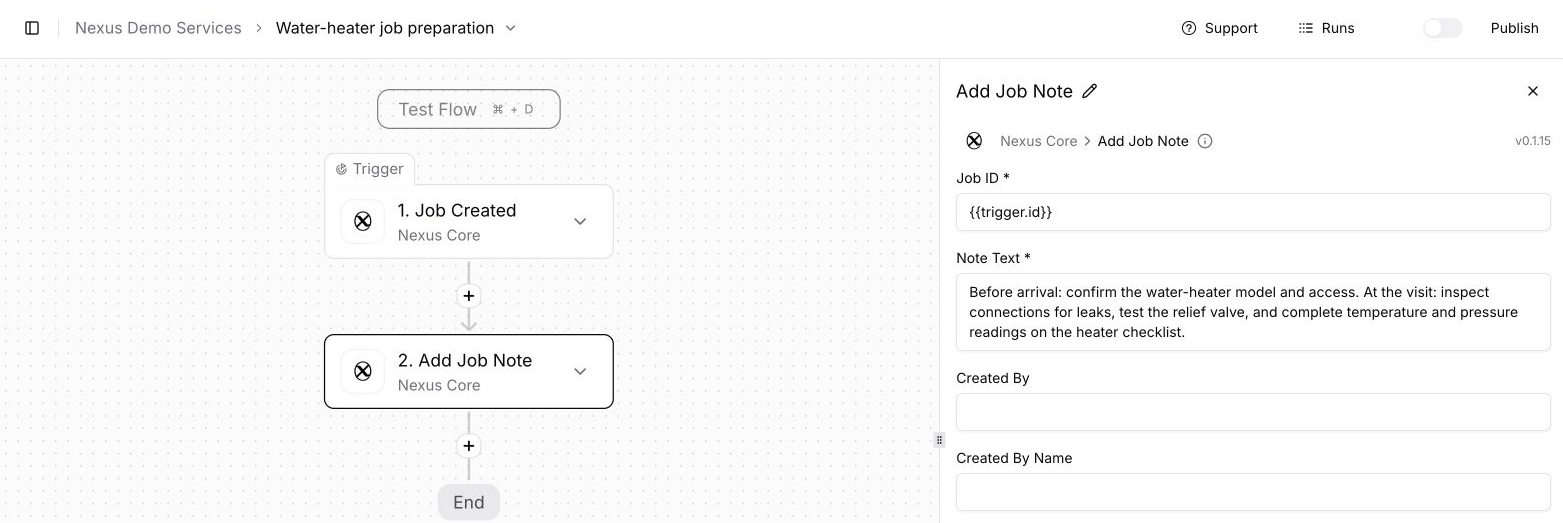
The operational procedure
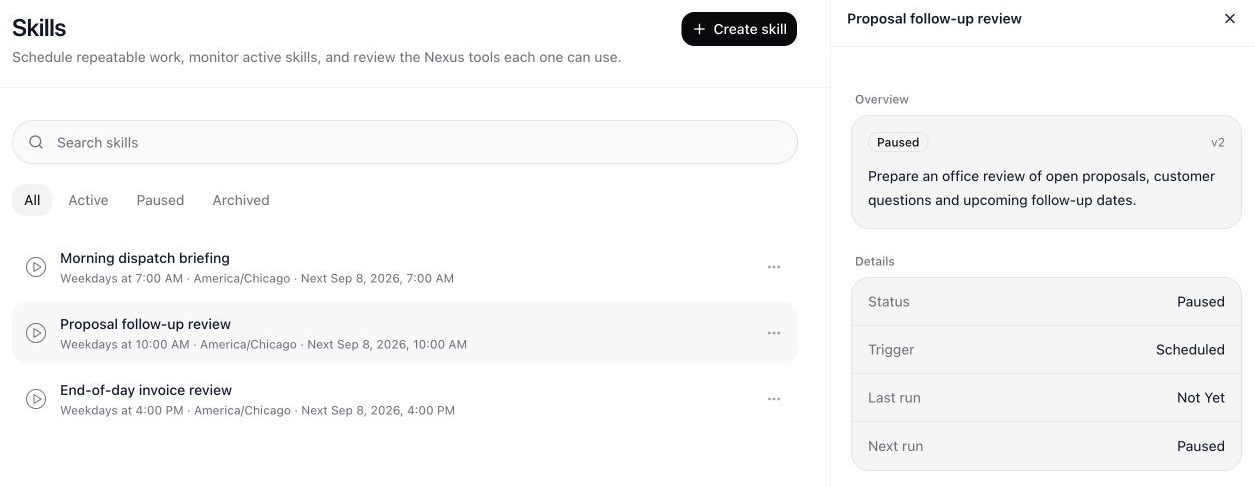
The skills workspace makes the recurring task, its status, and its schedule visible before the office relies on it.
Walk through it with usAsk from the field
Ask about the business while you are away from a desk. The Nexus mobile app brings Galileo into the same place the team uses for field work, with a conversation that starts from the question you actually need answered.
Here, the request is simple: which unsold estimates have the highest value right now? That is a practical starting point for deciding where to focus follow-up. It gives Galileo a clear record type, a status to consider, and a way to prioritize the response.
This screen captures the question while the answer is still being prepared. Continue the conversation to review the returned estimates and ask for more detail before deciding what to do next. Staff access and the configured approval policy still govern the work Galileo can help carry out.
See this workflow in Nexus
The decision boundary
Set the staff access profile and approval policy for the work that Galileo is allowed to prepare or complete.
Walk through it with us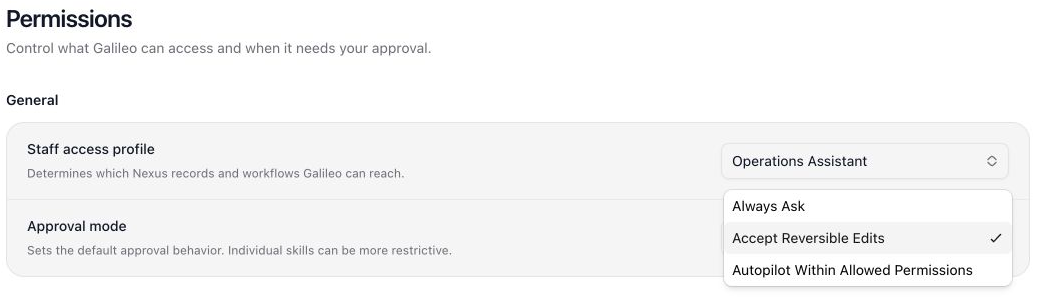
Galileo on mobile
Open estimates deserve attention even when you are away from the office. Ask Galileo which unsold estimates have the highest value, then review the answer from the Nexus mobile app before deciding which customer conversation should happen next.
In this demo, Leo returns five unsold estimates totaling $12,455. The response lists the estimate references and customers, explains the open pipeline, and separates sold or dismissed work from the opportunities still being considered. That context makes the list more useful than a single total.
Use the answer to choose the records to review with the team. Check the scope and the next follow-up before contacting the customer. Galileo brings the information into the conversation while your staff keeps the final decision in hand.
See this workflow in Nexus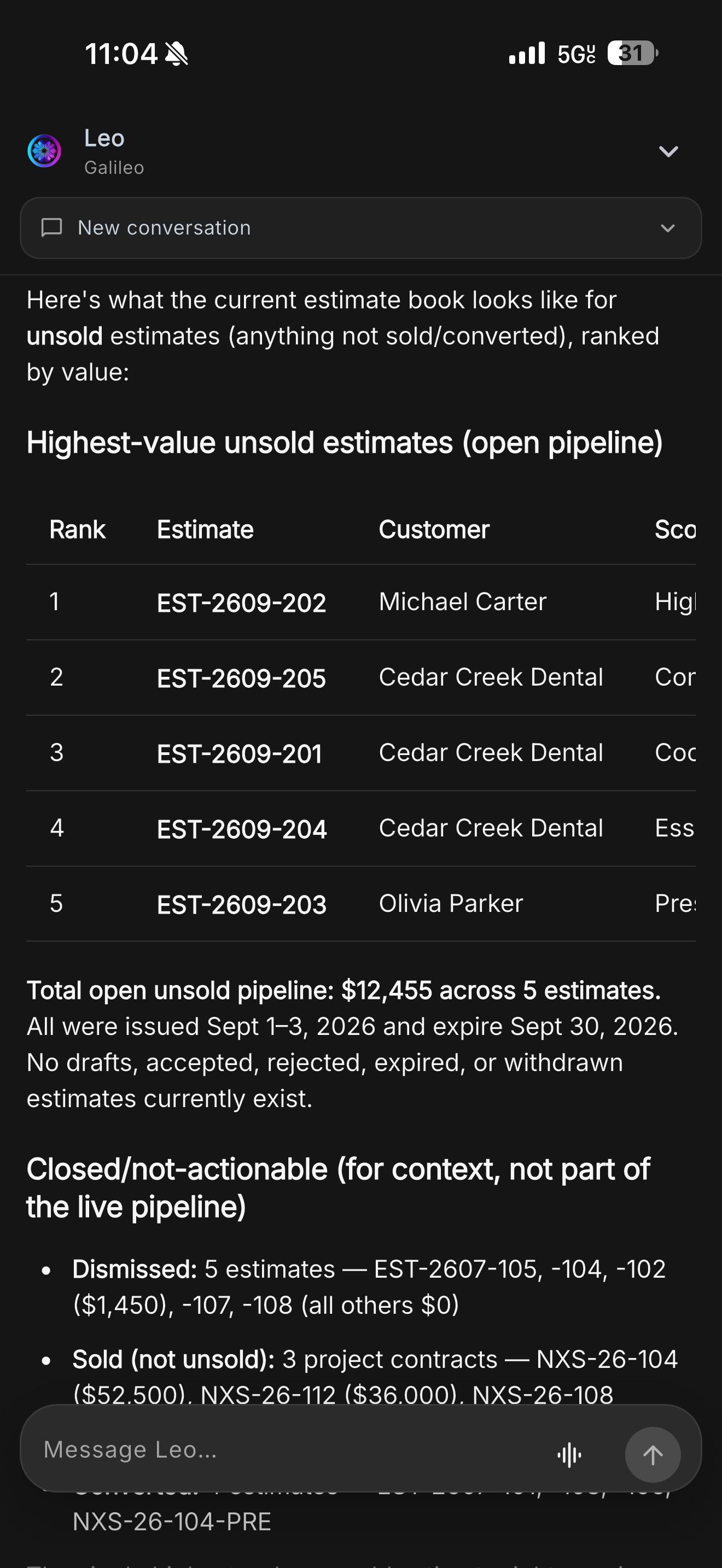
Take a closer look
How can a service business use AI automation without turning every customer action into a black box?
Use Galileo skills for repeatable back-office work and Nexus automation for configured workflow steps. Define the records, trigger, staff role, permitted commands, and approval boundary before activating the process so the office can see how the work starts and where a person reviews it.
Can AI do useful work in Nexus while I control what it can change?
Galileo works with Nexus records using the staff-role permissions you assign. Choose how it asks for approval, give it a specific task, and follow the proposed actions and completed work in its workspace.
Choose the Nexus staff role Galileo will use. Select the business areas and actions it can access, such as reading job information, adding a note, or changing an appointment.
Select Always Ask, Accept Reversible Edits, or Autopilot Within Allowed Permissions. The policy changes how eligible actions are approved; it does not remove the boundaries of the selected role.
Identify the customer, job, appointment, or document and describe the outcome. For example, ask Galileo to create an estimate, reschedule an appointment, update invoice details, or add a job note.
If Galileo needs more information, respond in the task conversation. Confirm which record or schedule change you mean rather than asking it to guess between similar customers or jobs.
The approval card explains why confirmation is needed and shows the proposed command with its available details. Approve it to continue or deny it when the proposed change is not what you intended.
Use Work to inspect plans, pending approvals, and completed actions. Open the task conversation when you need to clarify, correct, or stop the request. The activity remains available for the staff member reviewing the result.
Ask Galileo to turn a repeated procedure into a skill. Review its instructions, allowed tools, and manual, event, or scheduled trigger. Activate the reviewed skill when ready, run it when needed, and pause it when the process should stop.
For scheduled skills, review the next run and time zone and edit supported daily, weekday, or weekly timing. The Rules area shows proposed operating choices and their scope; confirm a rule, disable it, or ask Galileo to revise it before relying on that choice again.
The assigned staff role determines what Galileo can view and change. Updating that role’s Galileo permissions changes access for everyone assigned to the role.
The approval card shows the reason confirmation is needed and the proposed action details. Approve the action to continue or deny it and explain the change you want.
Autopilot uses the actions allowed by the assigned role. Payments, refunds, credentials, and tenant administration remain outside Galileo’s access.
Open a Galileo conversation and start voice when the account supports it. Allow microphone access, speak the request, and continue clarifications or corrections in that thread. Voice can submit or steer a task, while the same permission and approval controls govern the actual Nexus actions.
A few more answers
Get clear on the steps, the customer’s view, and the setup your team will need.
Use automation for configured trigger-and-action workflows. Use a Galileo skill for a reviewed operational procedure that can investigate records, prepare work, and operate within its assigned role and approval policy.
Only when the assigned role and approval policy allow it. Define what can proceed, what needs review, and where exceptions should go before activation.
Galileo can work with the Nexus records and commands allowed by its assigned staff role. It can also surface information and propose the next action. The configured role and approval policy determine what can proceed.
You choose the approval policy and the role permissions. Reviewed skills can run manually, from supported events, or on a schedule when the account has the needed autonomy access and usage allowance. Payments, refunds, credentials, and tenant administration remain outside Galileo access.
Yes. Always Ask is one available policy. Other modes allow reversible work or eligible actions within the assigned permissions, depending on the configuration.
An appointment action can change its date, times, arrival window, technicians, or duration, with the parent job schedule kept in step. Staff access and the selected approval mode determine which actions can run.
It can create jobs and estimates and add notes, as well as help interpret records. The selected staff role determines which actions it can use.
No. Payments, refunds, credentials, and tenant administration remain outside Galileo’s access in every approval mode.
Your team. Your workflow.
Bring a job your team knows well. We’ll walk through the scheduling, field work, documents, and billing that matter to your business.