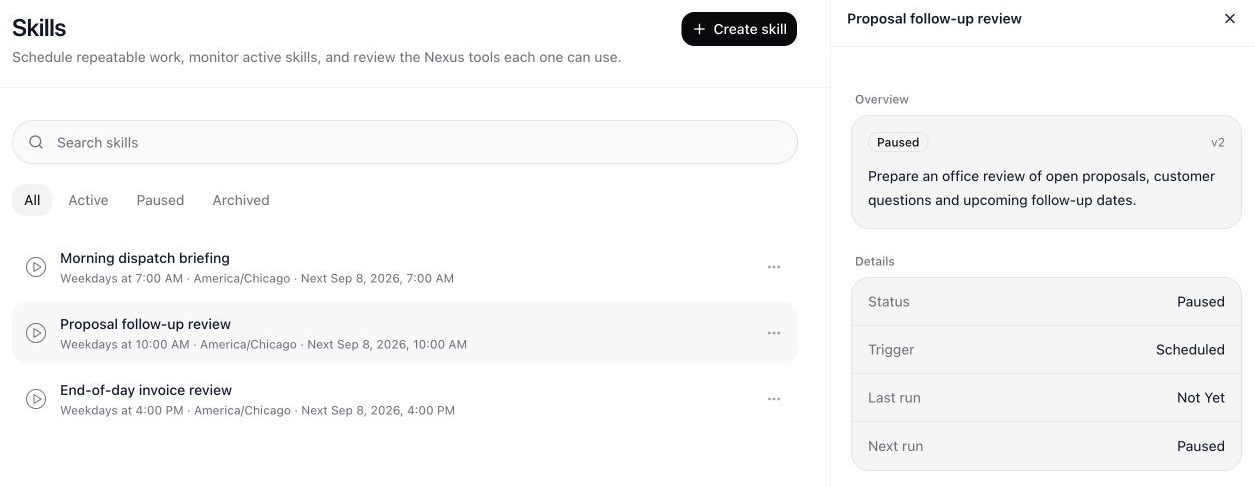
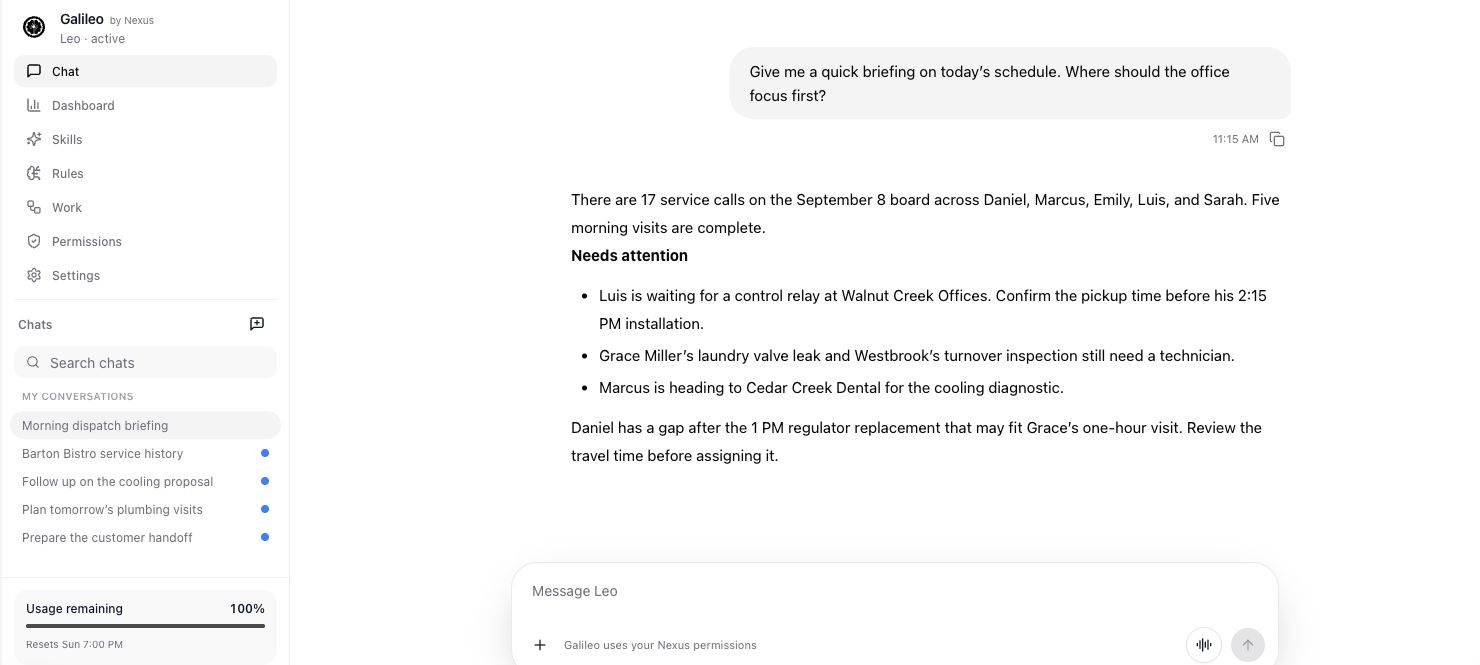
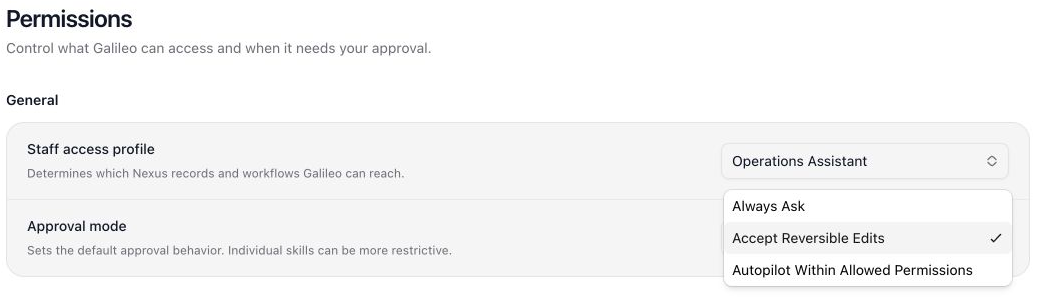
Save a specific review task with its own description, schedule, and status.View full size ↗
Follow the work
Estimate follow-up is slipping through the cracks
Ask Galileo to create a skill that reviews open estimates, prioritizes the records worth attention, prepares the next outreach, and holds customer-facing messages at the approval point you choose. The same pattern can support purchasing checks, technician performance reporting, and appointment follow-through.
The starting request
Describe the actual back-office outcome you need.
Begin with a concrete request: recover estimate follow-up, prepare a technician review, or identify purchasing work that needs attention.
Ask about the business while you are away from a desk. The Nexus mobile app brings Galileo into the same place the team uses for field work, with a conversation that starts from the question you actually need answered.
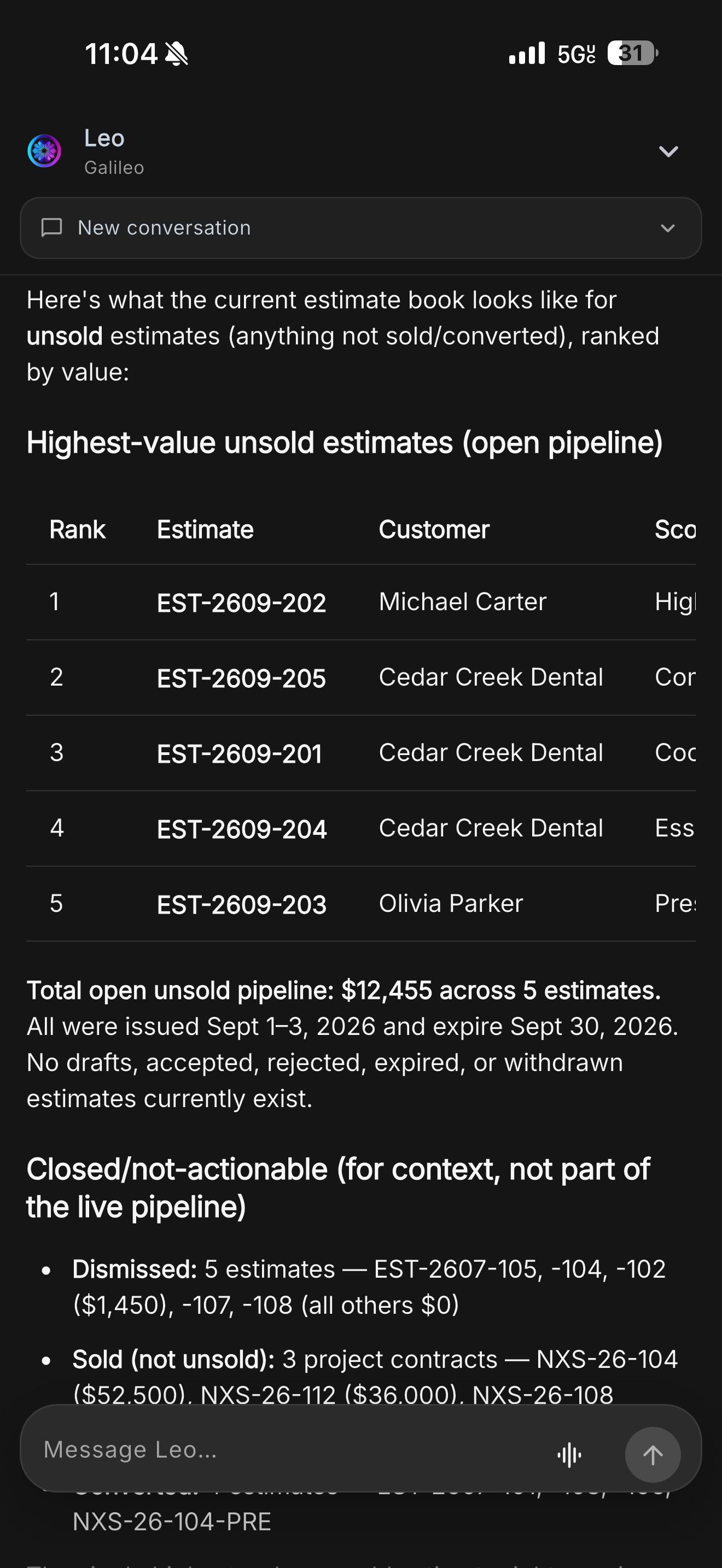
Here, the request is simple: which unsold estimates have the highest value right now? That is a practical starting point for deciding where to focus follow-up. It gives Galileo a clear record type, a status to consider, and a way to prioritize the response.
This screen captures the question while the answer is still being prepared. Continue the conversation to review the returned estimates and ask for more detail before deciding what to do next. Staff access and the configured approval policy still govern the work Galileo can help carry out.
Open estimates deserve attention even when you are away from the office. Ask Galileo which unsold estimates have the highest value, then review the answer from the Nexus mobile app before deciding which customer conversation should happen next.
In this demo, Leo returns five unsold estimates totaling $12,455. The response lists the estimate references and customers, explains the open pipeline, and separates sold or dismissed work from the opportunities still being considered. That context makes the list more useful than a single total.
Use the answer to choose the records to review with the team. Check the scope and the next follow-up before contacting the customer. Galileo brings the information into the conversation while your staff keeps the final decision in hand.
Review Galileo’s estimate follow-up answer in the mobile app.
Take a closer look
The details behind the workflow.
How do I turn a repeatable field-service process into a Galileo skill?
Describe the procedure, review the proposed instructions and allowed tools, choose a trigger, and activate the skill when its role permissions and review boundary are ready. Galileo skills give recurring operational work a reusable starting point without hiding how the process runs.
Build a Galileo skillTurn a useful operating procedure into a reusable Galileo skill+
How do I create a Galileo skill for a recurring back-office task?
Start with the result you need, the records Galileo should inspect, and the boundary where a person needs to review the work. Galileo can turn the reviewed procedure into a skill with a manual, event, or scheduled trigger.
01
Describe the job in operational terms
Give Galileo a clear outcome, such as finding open estimates that need a follow-up, reviewing technician performance for the prior week, or checking purchase orders that need attention. Name the records and the decision the skill should help your team make.
02
Review the instructions and allowed tools
Open the proposed skill and inspect its instructions, permitted commands, and any required context. The skill should reflect how your office already wants the work handled, not a vague request to “do follow-up.”
03
Choose how the skill starts
Run it manually when the task is occasional, attach it to a supported event when it belongs in a workflow, or choose a daily, weekday, or weekly schedule. Check the time zone and next run before activating it.
04
Set the review boundary before it runs
The employee role and approval policy still apply to the skill. Keep customer-facing changes, ambiguous records, and exceptions visible for the people who should make the call.
Example: recover estimate follow-ups
“Review unsold estimates created in the last 30 days. Group them by value and last follow-up. Draft the next outreach for the records that are still open, then hold customer-facing messages for approval.” This gives Galileo a measurable queue, a useful priority, and a review point.
Example: technician performance review
“Every Monday, summarize the previous week’s completed jobs by technician. Flag unusually low close rate, high return-visit count, or missing forms for a manager to review.” Use the report as a conversation starter; it should not make personnel decisions on its own.
Example: purchasing follow-through
“Review open purchase orders and job tasks due this week. Identify orders without a delivery update and prepare a list of jobs that may need a return visit.” The office can then confirm supplier status and decide how to communicate with each customer.
A few more answers
Questions about this workflow
Get clear on the steps, the customer’s view, and the setup your team will need.
Can a skill send messages or reschedule work?
It can use only the commands and records allowed by the assigned role, and the approval policy still applies. Review a customer-facing action before activation if that is the boundary your operation needs.
Can I stop or change a skill later?
Yes. Reviewed skills have lifecycle controls, including activation, manual run, schedule editing, and pause controls. Update the procedure when the business process changes.
Can Galileo take actions, or does it only answer questions?
Galileo can work with the Nexus records and commands allowed by its assigned staff role. It can also surface information and propose the next action. The configured role and approval policy determine what can proceed.
Can I make Galileo run without checking every action?
You choose the approval policy and the role permissions. Reviewed skills can run manually, from supported events, or on a schedule when the account has the needed autonomy access and usage allowance. Payments, refunds, credentials, and tenant administration remain outside Galileo access.
Your team. Your workflow.
See your business in Nexus.
Bring a job your team knows well. We’ll walk through the scheduling, field work, documents, and billing that matter to your business.